Connecting to Snowflake
Access Snowflake by connecting your Snowflake account to Coco Alemana
What You’ll Need
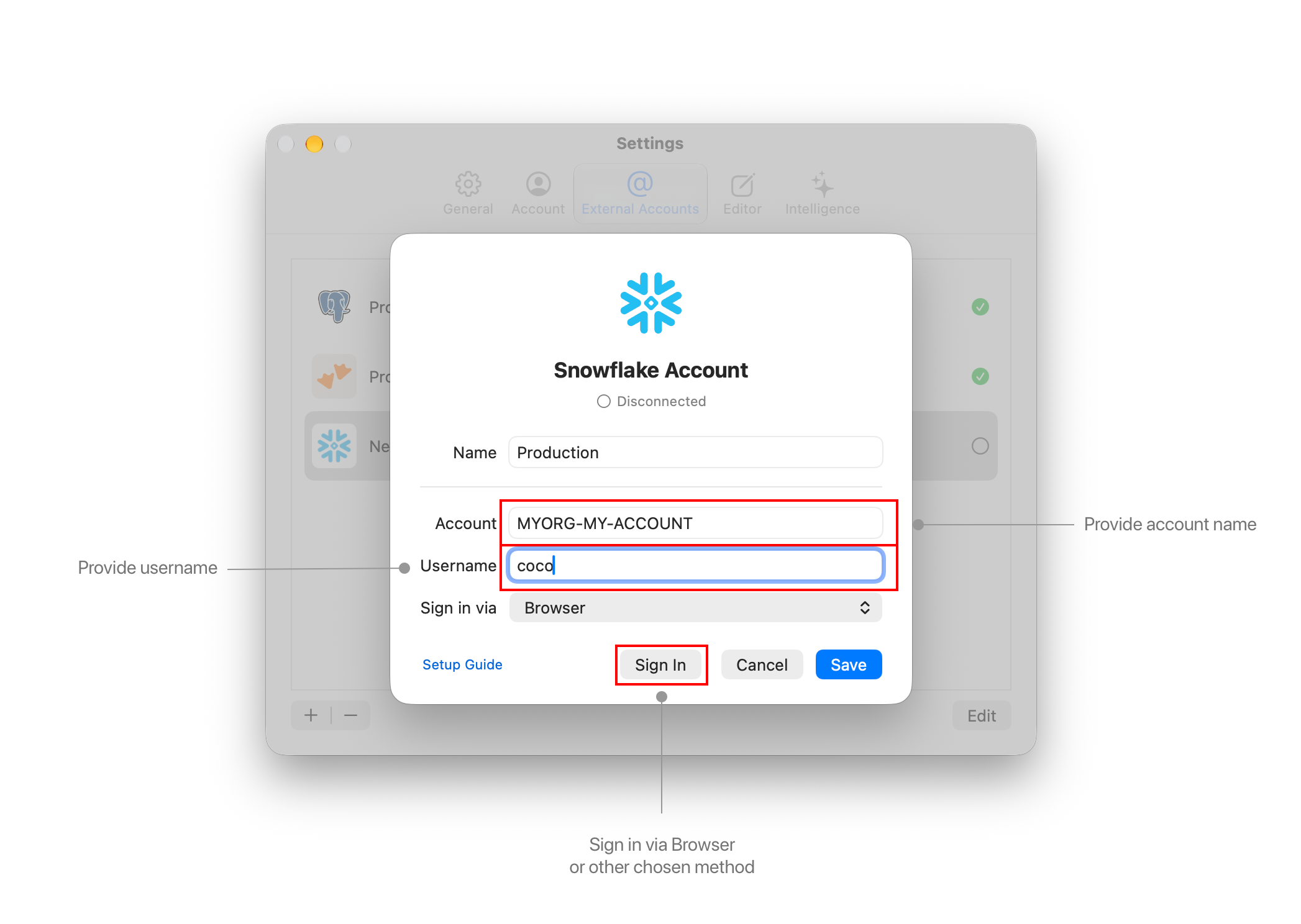
Section titled “What You’ll Need”Every sign-in method needs two things:
- Account identifier:
MYORG-MYACCOUNT - Username:
YOUR_USERNAME
Your account identifier is the organization and account name joined with a dash. You can find it in Snowsight under your account menu, or read more in Snowflake’s account identifier documentation.
Choose a Sign-In Method
Section titled “Choose a Sign-In Method”Coco Alemana supports three ways to sign in to Snowflake:
| Method | Best for |
|---|---|
| Browser | Most people. Sign in through your browser — no secrets to copy. |
| Access Token (PAT) | Accounts where browser sign-in is blocked, or service users. |
| Key Pair (JWT) | Automated or locked-down setups that already use key pairs. |
Browser (Recommended)
Section titled “Browser (Recommended)”Signing in via the browser opens your Snowflake sign-in page, where you approve access once. Coco Alemana stores the resulting tokens securely on your device and refreshes them for you — you don’t handle any secrets.
Access Token (PAT)
Section titled “Access Token (PAT)”A programmatic access token is generated in Snowsight, under your user’s settings. Paste the token into Coco Alemana along with your username.
See Snowflake’s programmatic access token documentation for how to generate one.
Key Pair (JWT)
Section titled “Key Pair (JWT)”Key-pair authentication uses a private key file (.p8) on your device, with the matching public key registered on your Snowflake user. Select the key file in Coco Alemana along with your username.
See Snowflake’s key-pair authentication documentation for how to generate a key pair and register the public key.
Add the Account
Section titled “Add the Account”1. Open the External Accounts Window
Section titled “1. Open the External Accounts Window”To provide your credentials to Coco Alemana, open the External Accounts... pane, under the top-level Coco Alemana menu.

2. Add a new External Account
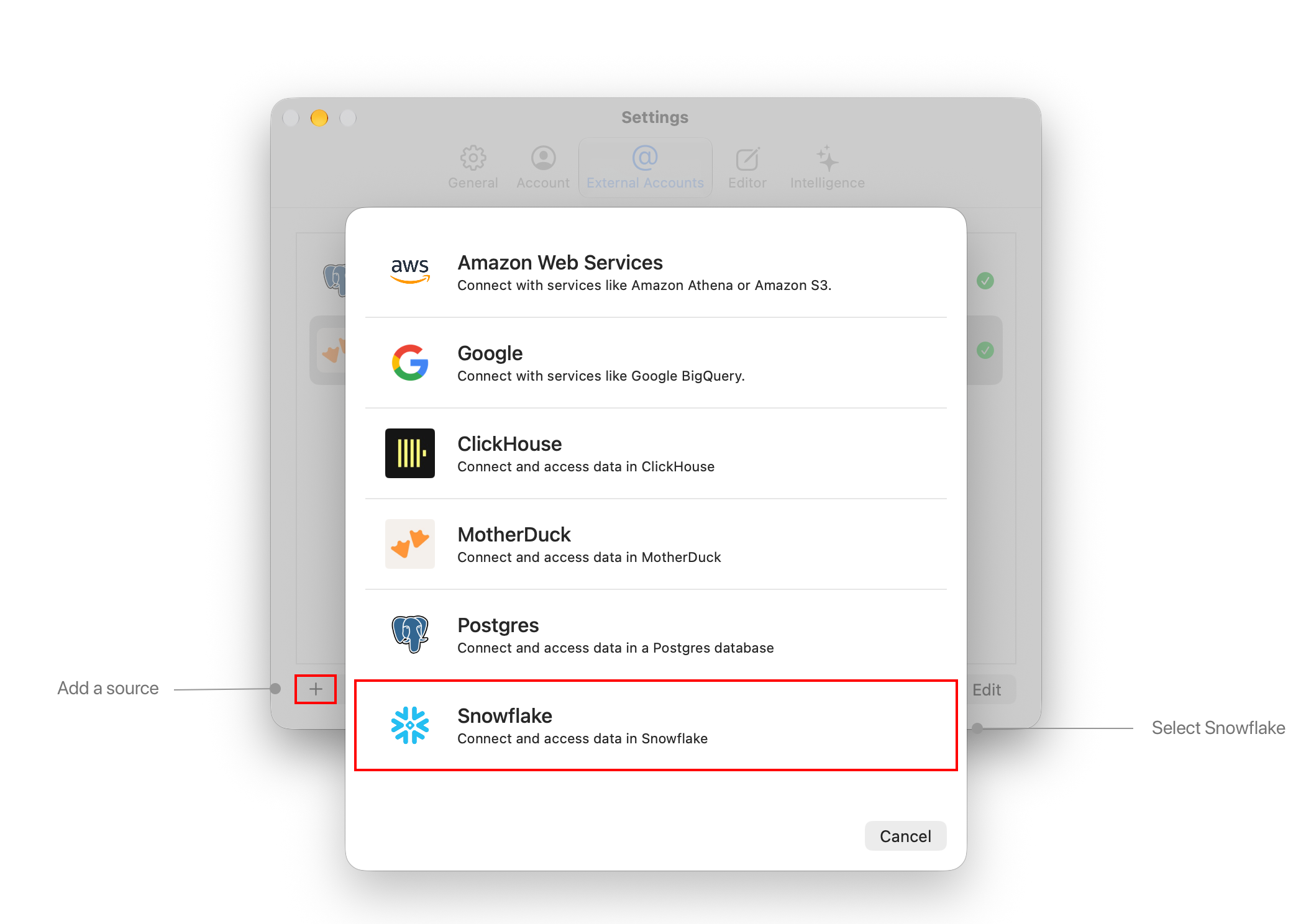
Section titled “2. Add a new External Account”Press the “Add Account…” button, or the plus button on the bottom-left hand side of the window.
Select the “Snowflake” option.
3. Connect Credentials
Section titled “3. Connect Credentials”Enter your account identifier and username, pick a sign-in method, and press “Sign In” (or “Connect”). Coco Alemana verifies the connection with Snowflake before saving anything.