Connecting to MotherDuck
Access MotherDuck by connecting your MotherDuck account to Coco Alemana with an access token
Coco Alemana uses MotherDuck Access Tokens
Section titled “Coco Alemana uses MotherDuck Access Tokens”Coco Alemana connects to MotherDuck with an access token, not the browser sign-in flow.
Browser sign-ins produce a session that expires. When it does, everything that touches MotherDuck — loading a table, refreshing a frame, background table discovery — stops and waits for you to log in again. For a tool you keep open all day, that means constant re-logins in the middle of your work.
A token doesn’t have that problem. You create it once, Coco Alemana stores it in the macOS Keychain, and every connection authenticates silently from then on.
Creating a MotherDuck Access Token
Section titled “Creating a MotherDuck Access Token”- Sign in to app.motherduck.com
- Open Settings, then Access Tokens
- Create a new token — name it something recognizable, like
Coco Alemana - Copy the token. MotherDuck only shows it once.

1. Open the External Accounts Pane
Section titled “1. Open the External Accounts Pane”To provide your token to Coco Alemana, open the External Accounts... pane, under the top-level Coco Alemana menu.
2. Add a new External Account
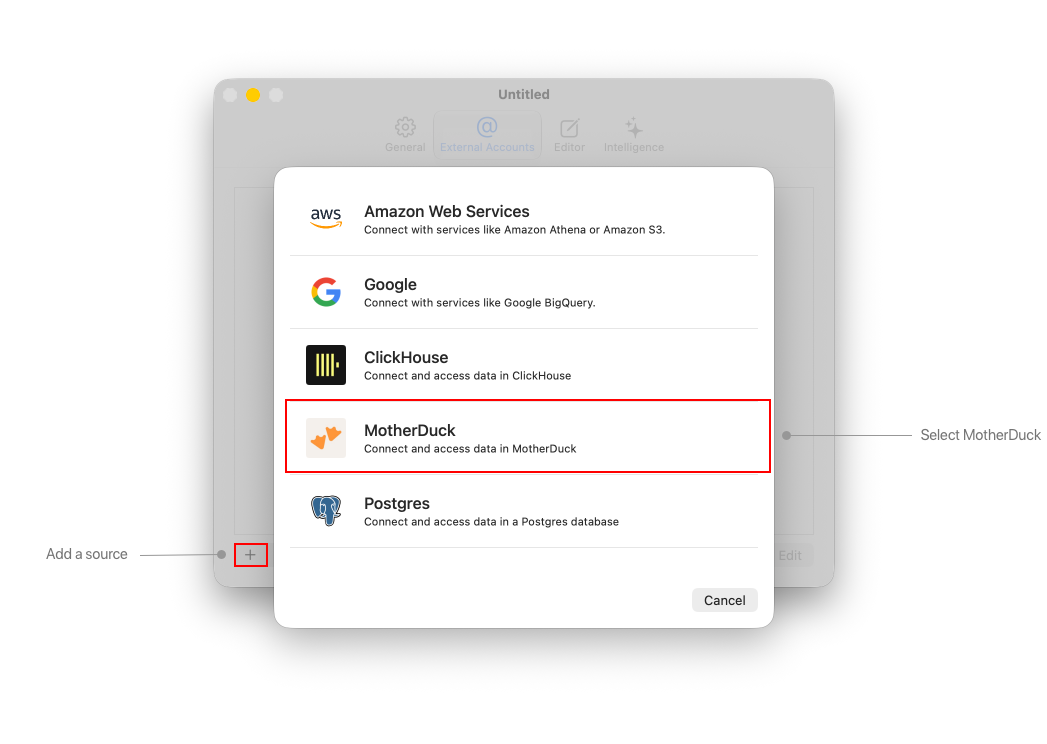
Section titled “2. Add a new External Account”Press the plus button on the bottom-left hand side of the pane.
Select the “MotherDuck” option.
3. Connect the Token
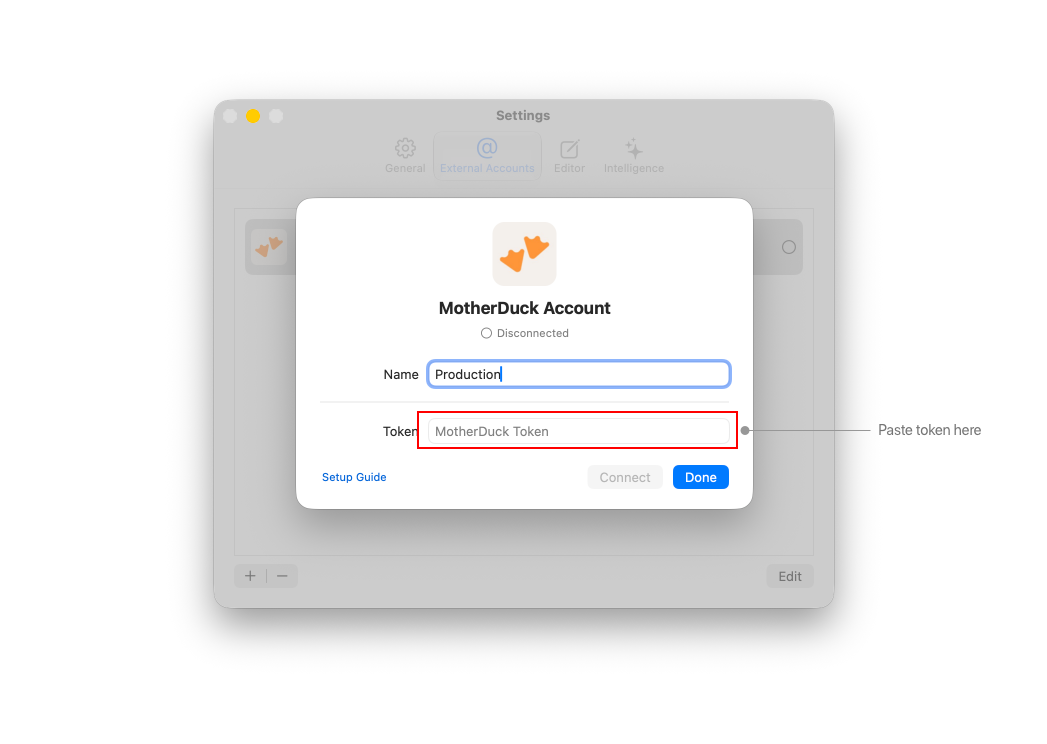
Section titled “3. Connect the Token”Paste your token and press “Connect”. Coco Alemana verifies the token against MotherDuck before saving anything — it’s stored in the macOS Keychain only after a successful connection.